> For the complete documentation index, see [llms.txt](https://docs.smaq.io/documentation/llms.txt). Markdown versions of documentation pages are available by appending `.md` to page URLs; this page is available as [Markdown](https://docs.smaq.io/documentation/features/dashboard/add-data-tables.md).
# Add data tables
Create powerful data tables that display your metrics in a structured, easy-to-read format.
### Overview
This guide explains how to add data tables to dashboards, configure columns and rows, apply formatting and styling, set up linked cells that connect to other datablocks, and use Excel-like formulas for calculations. Tables are perfect for detailed metrics and cross-referencing data across your analytics.
### Step 1: Add a Data Table to the dashboard
You will have to specify the size (number of rows and columns) of your table.
For demo purpose, we will create a 3 by 3 table. Then click "**Create Table**"
### Step 2: Start editing your table
This tables works just like most spreadsheet where you can type in values and apply basic formatting to numbers, currencies, text, etc.
### Step 3: Link a cell to a data source
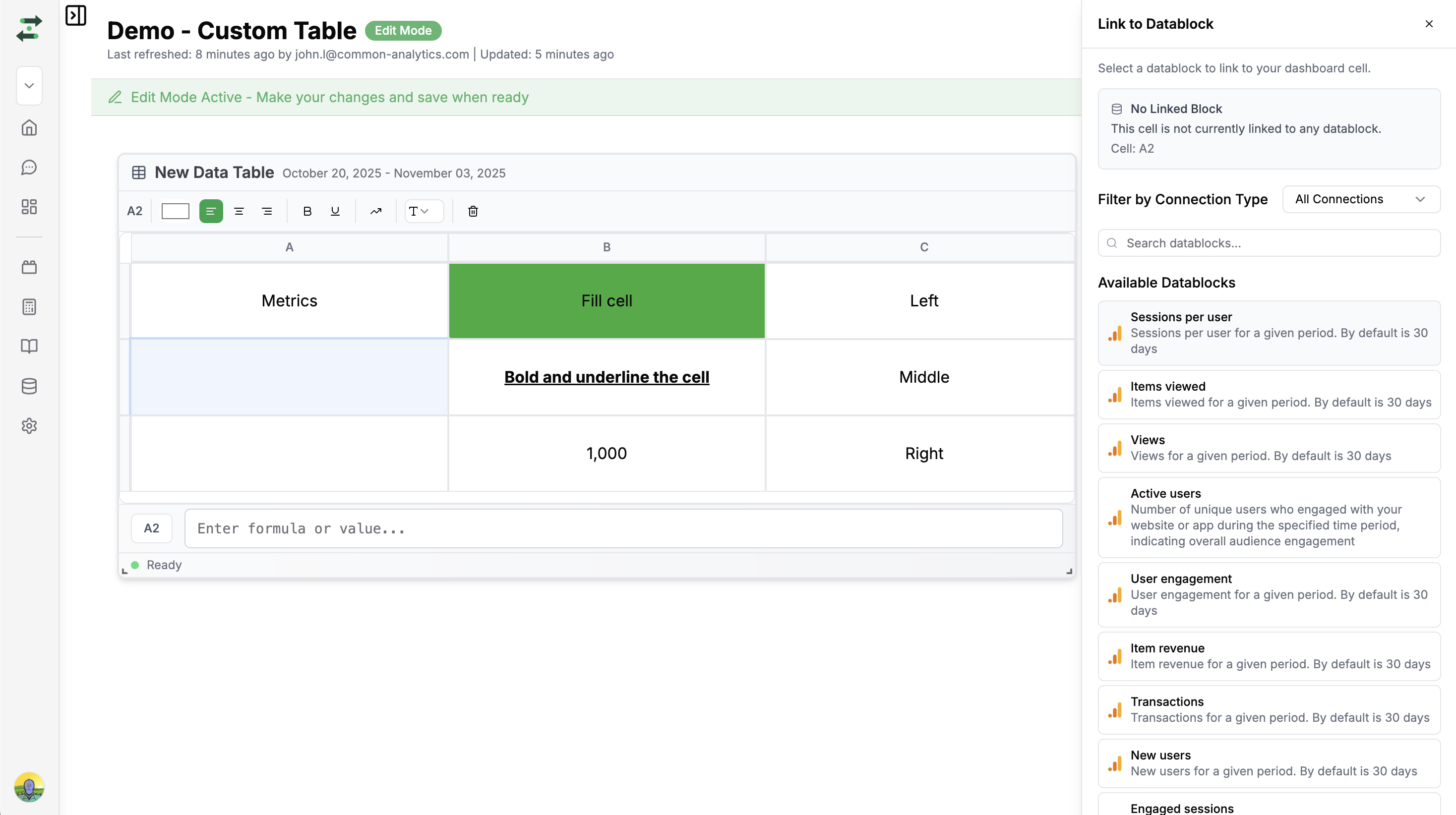
A powerful feature of data table is to link it to multiple data source. Now, right click on the cell to see the option menu, then click "**Link to Datablock**" -> "**From Existing Datablock**"
Then we can choose the metrics that we want to add to the table
Reminder: choose the aggregation type (total or average) before creating the link. Click "Create" to confirm
Once it is done, we will be able to see that the cell has been linked. From now on, the metric will be updated and refresehd together with other charts in the dashboard.
### Step 4: Link cell to custom block
Data table does not limit to pre-built metrics, but also let your link to a custom datablock. Simply choose "**Create Custom Block**" after you right click on the cell.
We encourage you to try it out!