> For the complete documentation index, see [llms.txt](https://docs.smaq.io/documentation/llms.txt). Markdown versions of documentation pages are available by appending `.md` to page URLs; this page is available as [Markdown](https://docs.smaq.io/documentation/features/dashboard/download-table-pivot-table-as-excel.md).
# Download Table/Pivot Table as Excel
This guide explains how you can export the current table data to an **Excel file (.xlsx)**.
**Where you can use it**
You can download tables/pivot tables from:
* **Dashboard table/pivot table blocks** (chart type Table/ Pivot Table)
* **Tables in chat** (when the AI renders a table visualization)
The table must have at least one row, otherwise the copy button does nothing.
### **Steps to download Table block:**
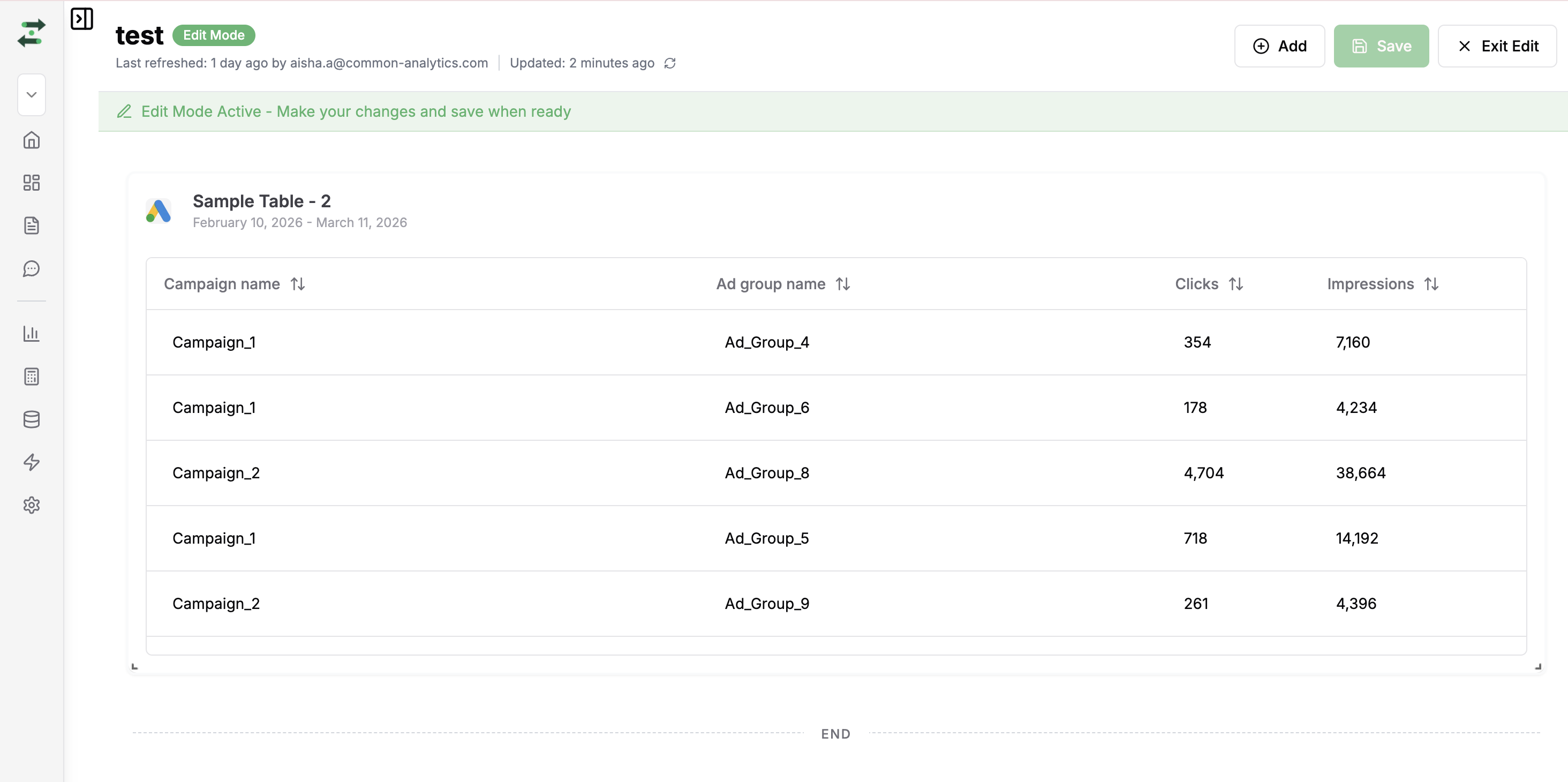
1. Open the dashboard and switch to **Edit** mode by selecting it from the dashboard header.
2. Hover over the block so the **toolbar** appears in the top-right (with Copy, Download, and other controls).
3. Click the **Download** icon (down arrow).
4. The file **table\_data.xlsx** is downloaded to your device. Open it in Excel or another spreadsheet app.
**Note:** The download uses the data currently shown in the table (visible columns, applied filters, custom columns, and aggregation row if enabled).
### **Steps to download Pivot table block:**
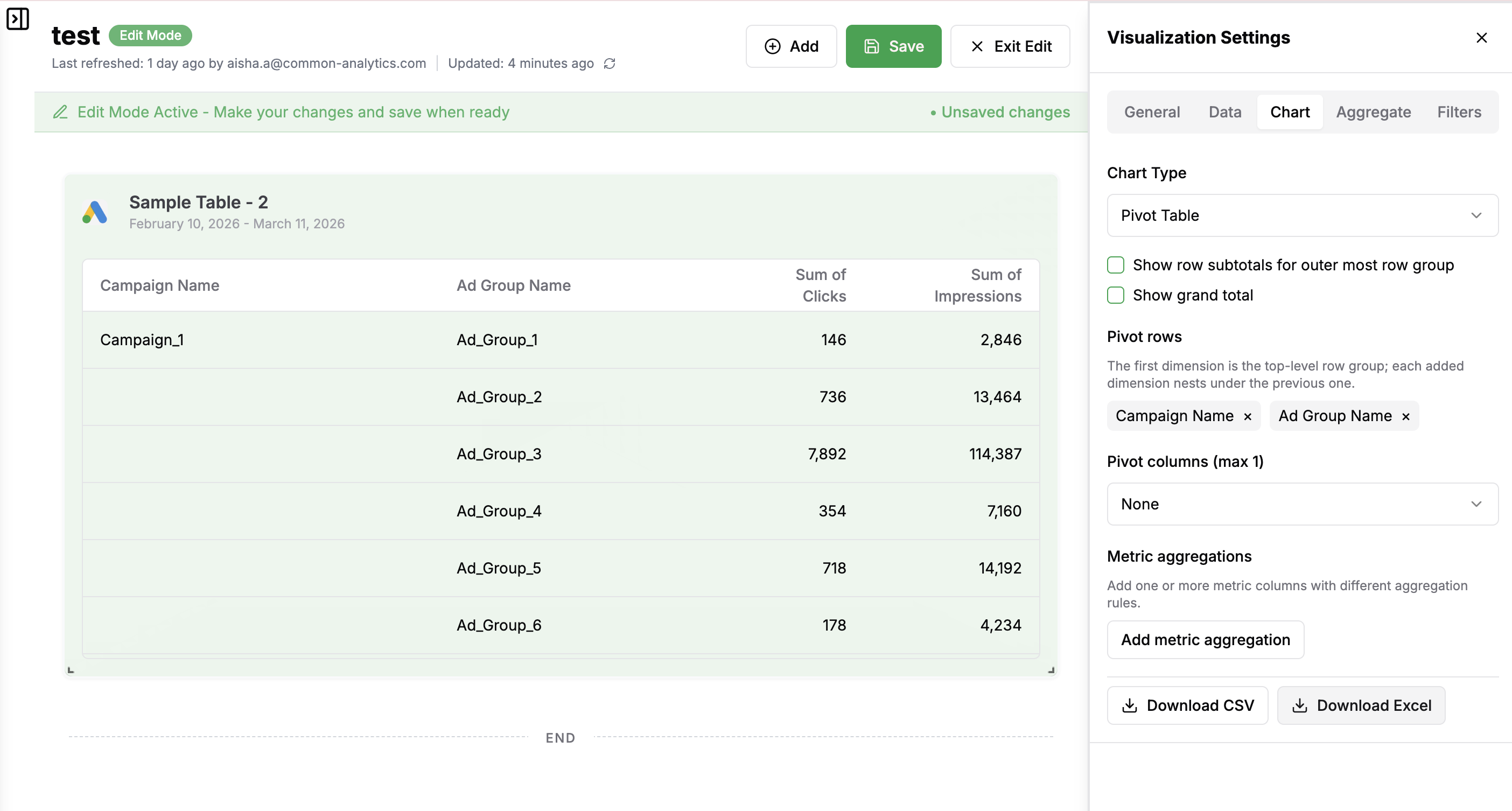
1. Open **Visualization** **Settings** (gear icon) on the **pivot table** block.
2. Go to the **Chart** tab.
3. Scroll to the bottom of the pivot settings. You’ll see **Download CSV** and **Download Excel**.
4. Click **Download Excel**.
5. The pivot data is exported as an Excel file (e.g. **table\_data.xlsx**). The export uses the current pivot layout (row dimensions, column dimension, and metrics).
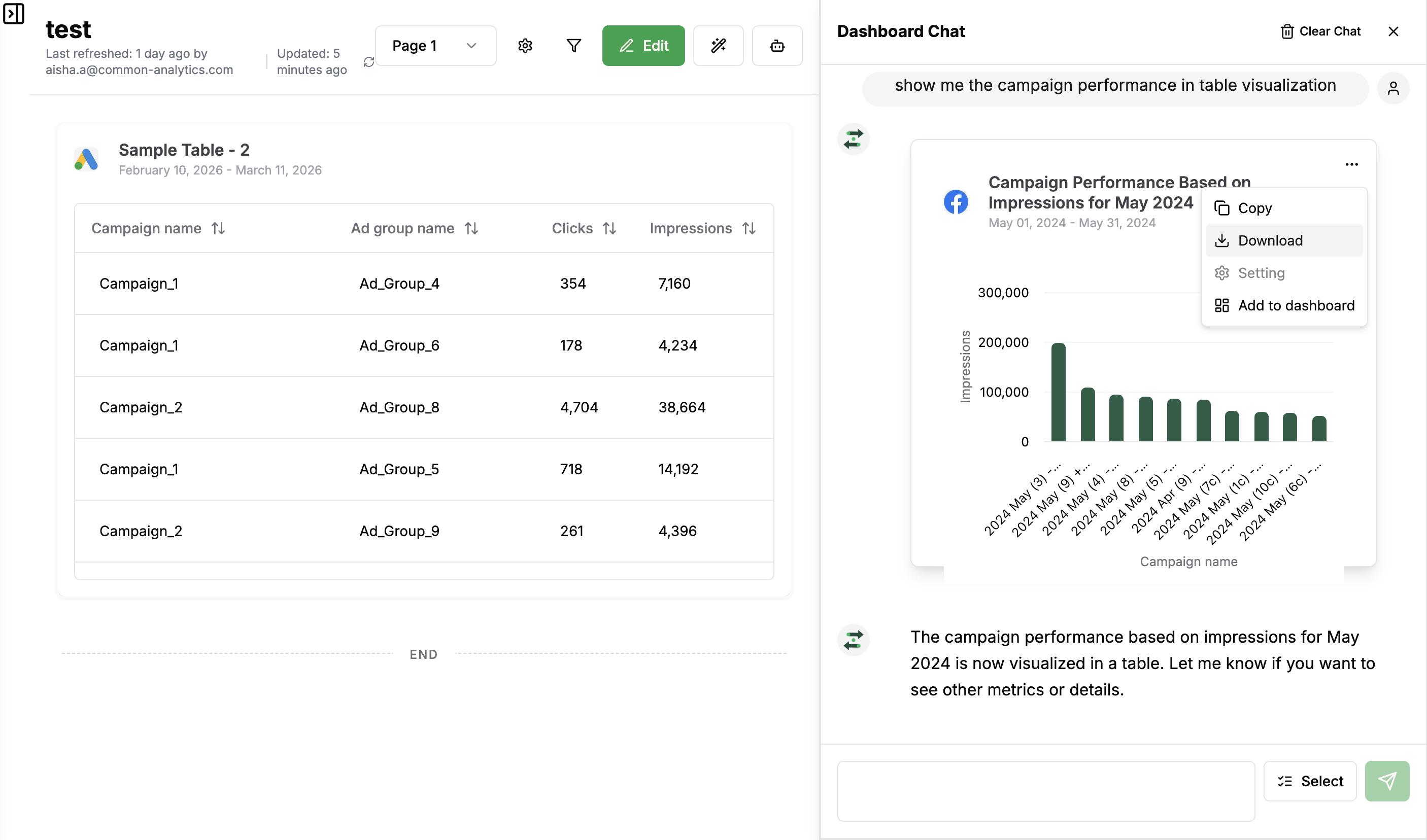
### Steps to download Table block from Dashboard Chat:
1. Click on the three dotted button on the top-right of that chart and click download.
2. The file **table\_data.xlsx** is downloaded to your device. Open it in Excel or another spreadsheet app.