> For the complete documentation index, see [llms.txt](https://docs.smaq.io/documentation/llms.txt). Markdown versions of documentation pages are available by appending `.md` to page URLs; this page is available as [Markdown](https://docs.smaq.io/documentation/features/dashboard/copy-table-to-clipboard.md).
# Copy Table to Clipboard
**Copy Table to Clipboard** lets you copy the **entire table (with headers)** into your clipboard in a spreadsheet‑friendly format (tab‑separated). You can then paste it directly into Excel, Google Sheets, or any editor.
**Where you can use it**
You can copy tables from:
* **Dashboard table blocks** (chart type Table)
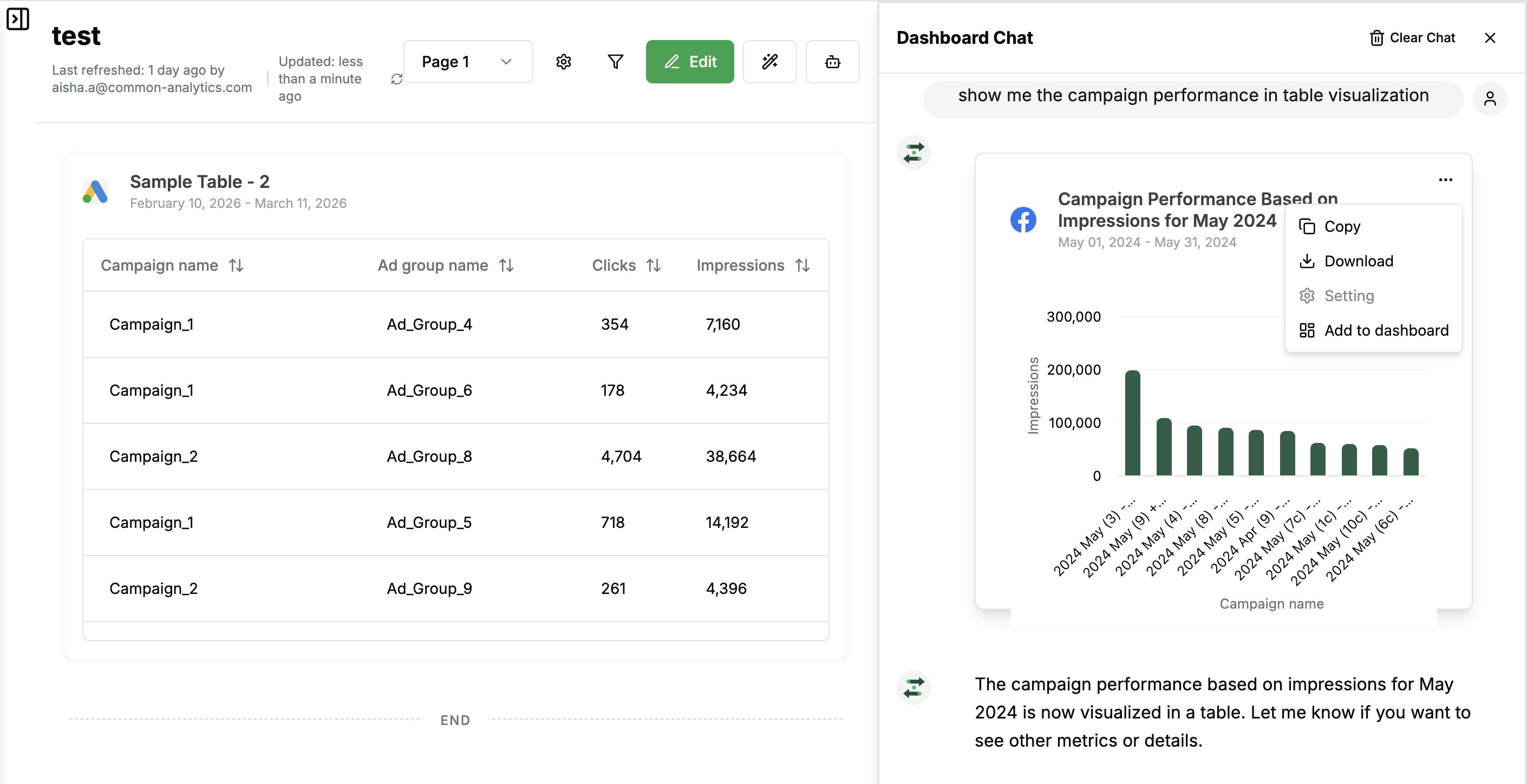
* **Tables in chat** (when the AI/tool renders a table visualization)
The table must have at least one row; otherwise the copy button does nothing.
### Steps to Copy a Table from a Dashboard:
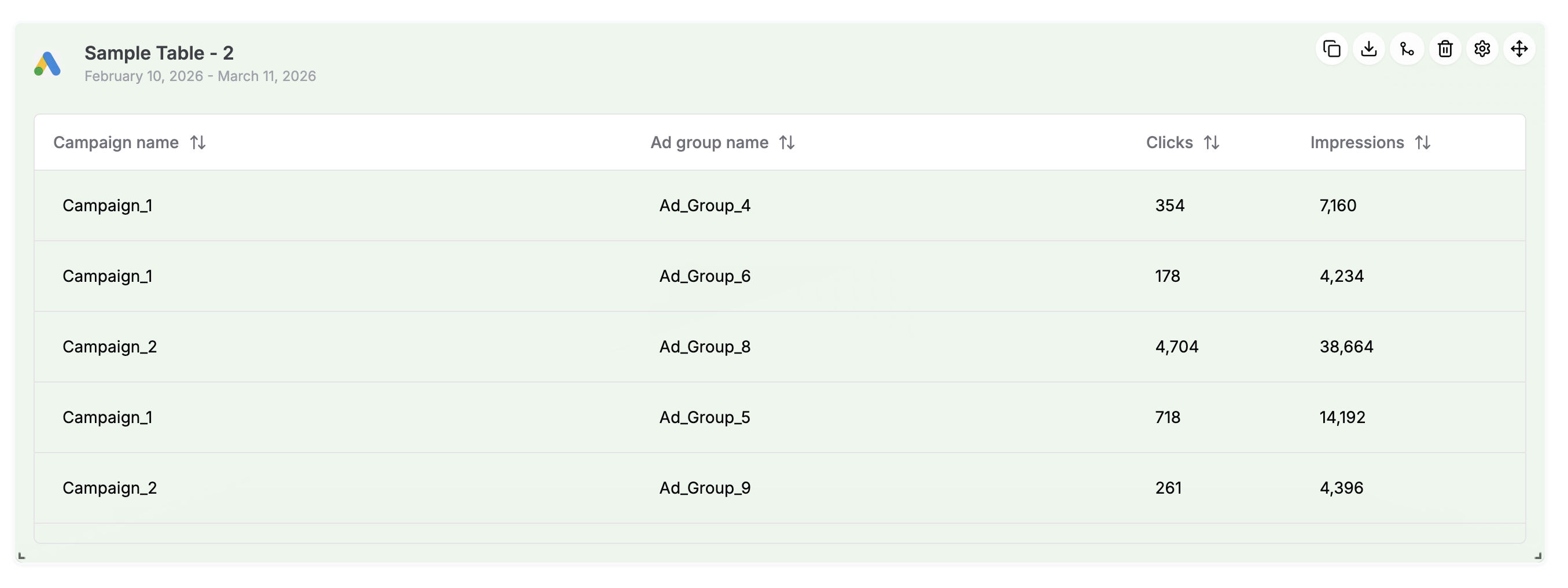
1. Find the visualization whose **Chart type** is Table (not Pivot Table, chart, etc.). Hover your mouse over the table block, click on the **Copy** icon on the top right corner of the chart.
2. The app builds a tab‑separated version of the data (including column headers and any aggregation row) and places it in your clipboard.
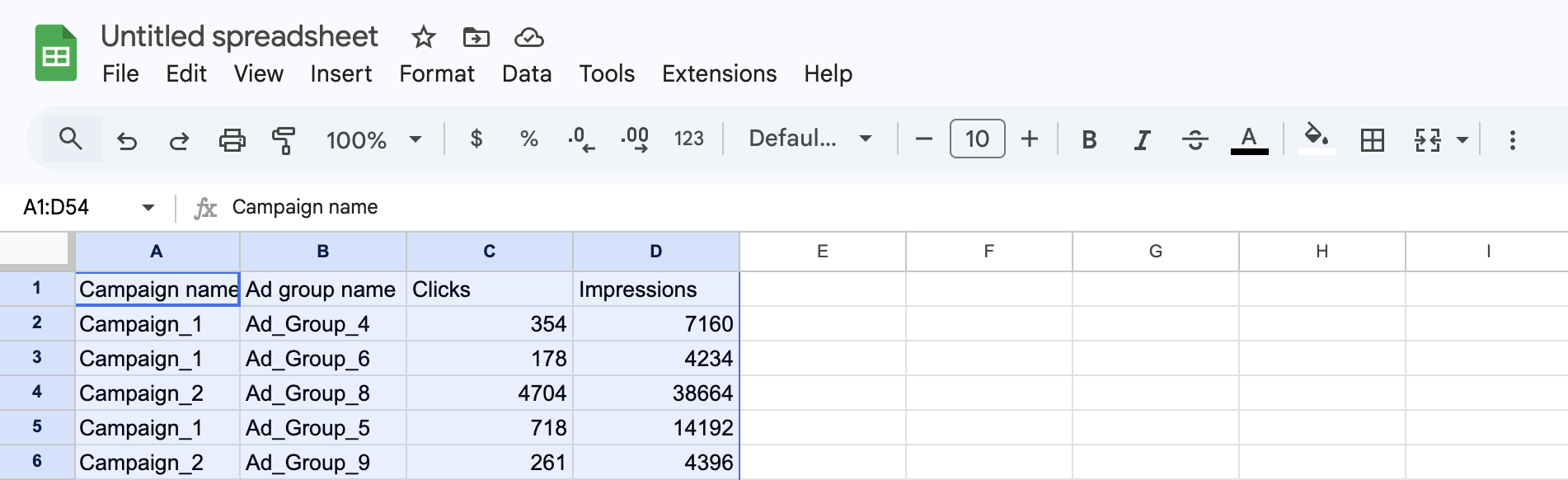
3. Paste into your tool
* Open Excel, Google Sheets, or another app.
* Click the starting cell, then press **Ctrl+V** / **Cmd+V**.
* The data appears with each column in its own cell.
### Steps to Copy a Table from a Dashboard Chat:
Click on the three dotted button on the top-right of that chart and click download. The chart in the example visualized as bar chart, however, the data will be copied as tab‑separated version and will be added to clipboard.