> For the complete documentation index, see [llms.txt](https://docs.smaq.io/documentation/llms.txt). Markdown versions of documentation pages are available by appending `.md` to page URLs; this page is available as [Markdown](https://docs.smaq.io/documentation/features/dashboard/merge-table.md).
# Merge Table
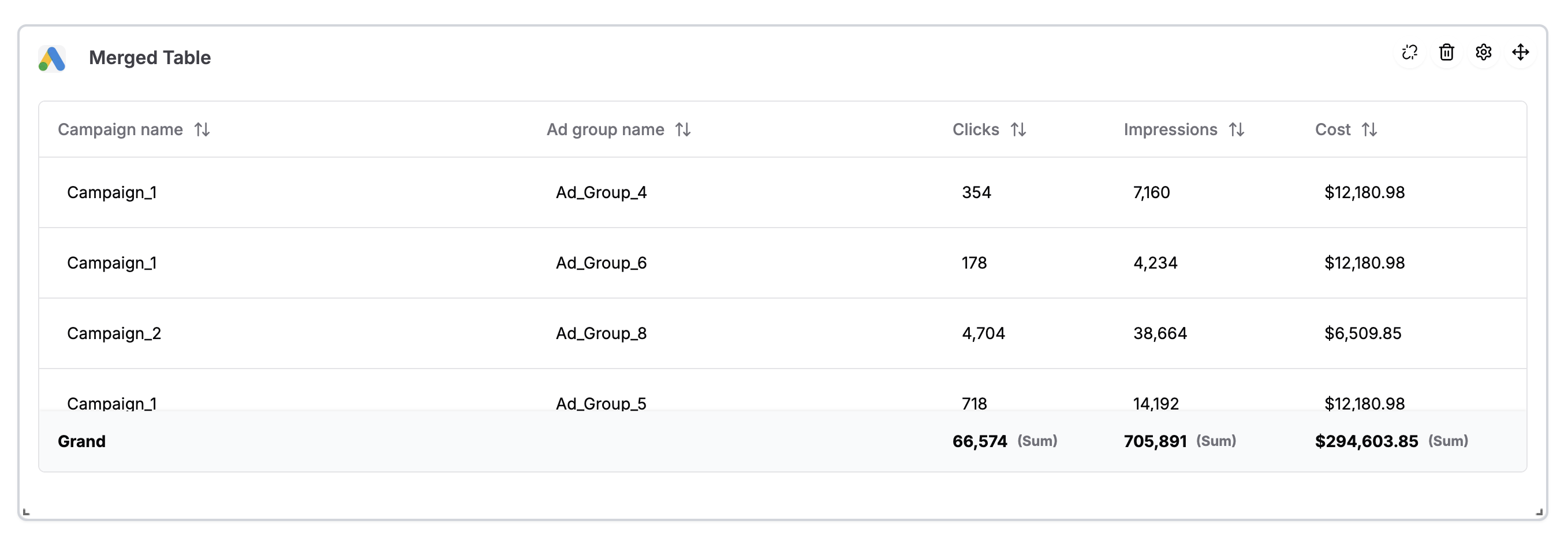
This guide explains how to merge tables in the dashboard. The **Merge Table** feature lets you combine two table blocks on a dashboard into one block by joining their rows on a common column. Use it when you have two tables (e.g. campaigns + spend) and want one table with rows aligned by a shared key (e.g. campaign ID, date).
### Prerequisite:
* **Dashboard in Edit mode** (you must be able to edit the dashboard).
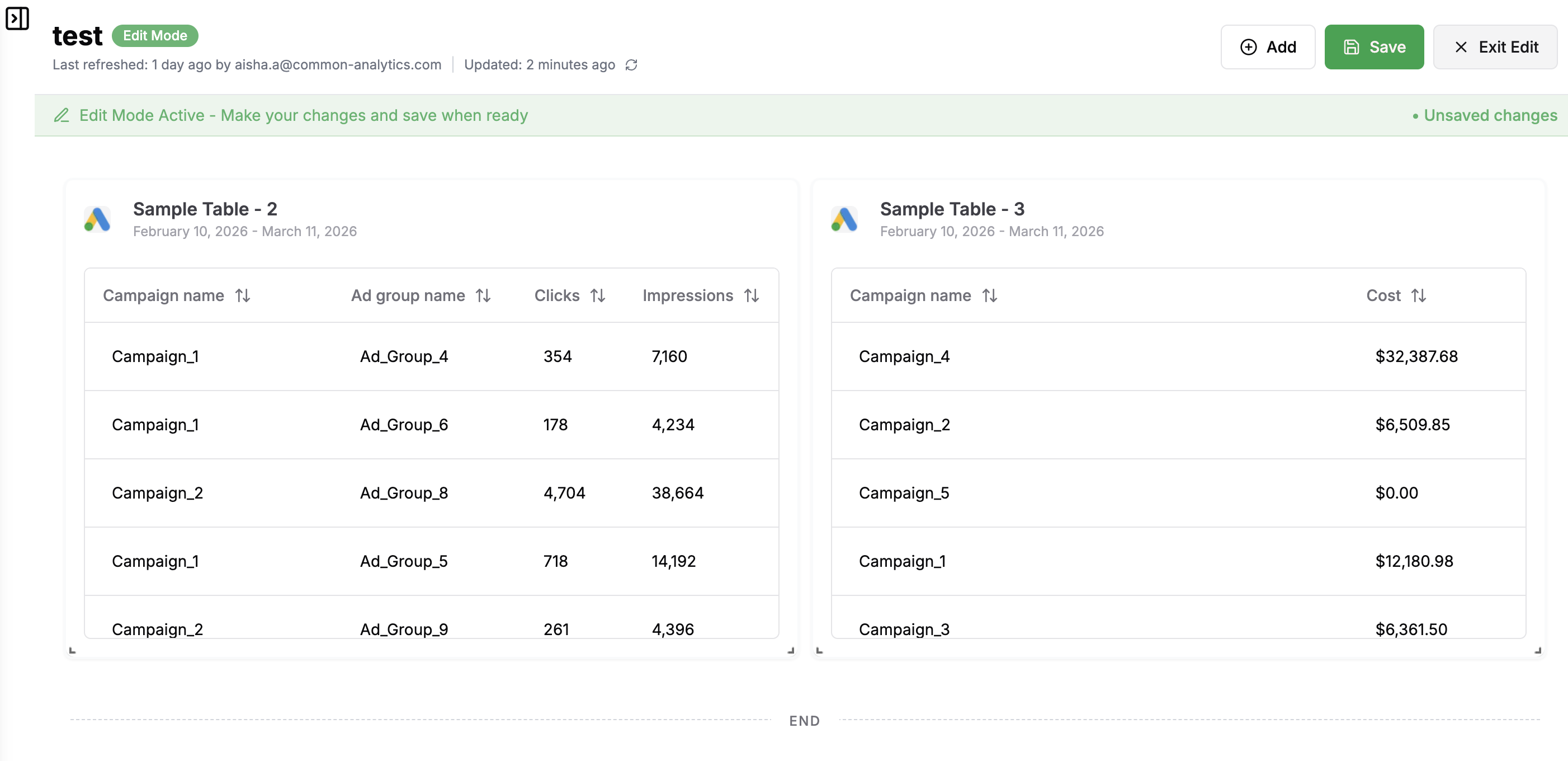
* **Two table blocks** – only blocks whose chart type is **Table** can be merged (not Pivot Table, line, bar, etc.).
* Both tables should have at least one column you can use to match rows (e.g. same IDs or Campaign Names).
### Steps to Merge Two Table:
1. **Turn on Edit mode**
* Open the dashboard and switch to **Edit** mode by selecting it from the dashboard header.
2. **Start merge from the first table**
* Find the **first** table block you want to merge (e.g. “Clicks Per Campaign”).
* Hover the block and click the merge icon in the block’s toolbar.
* Click the **second** table block (e.g. “Spend by campaign”).
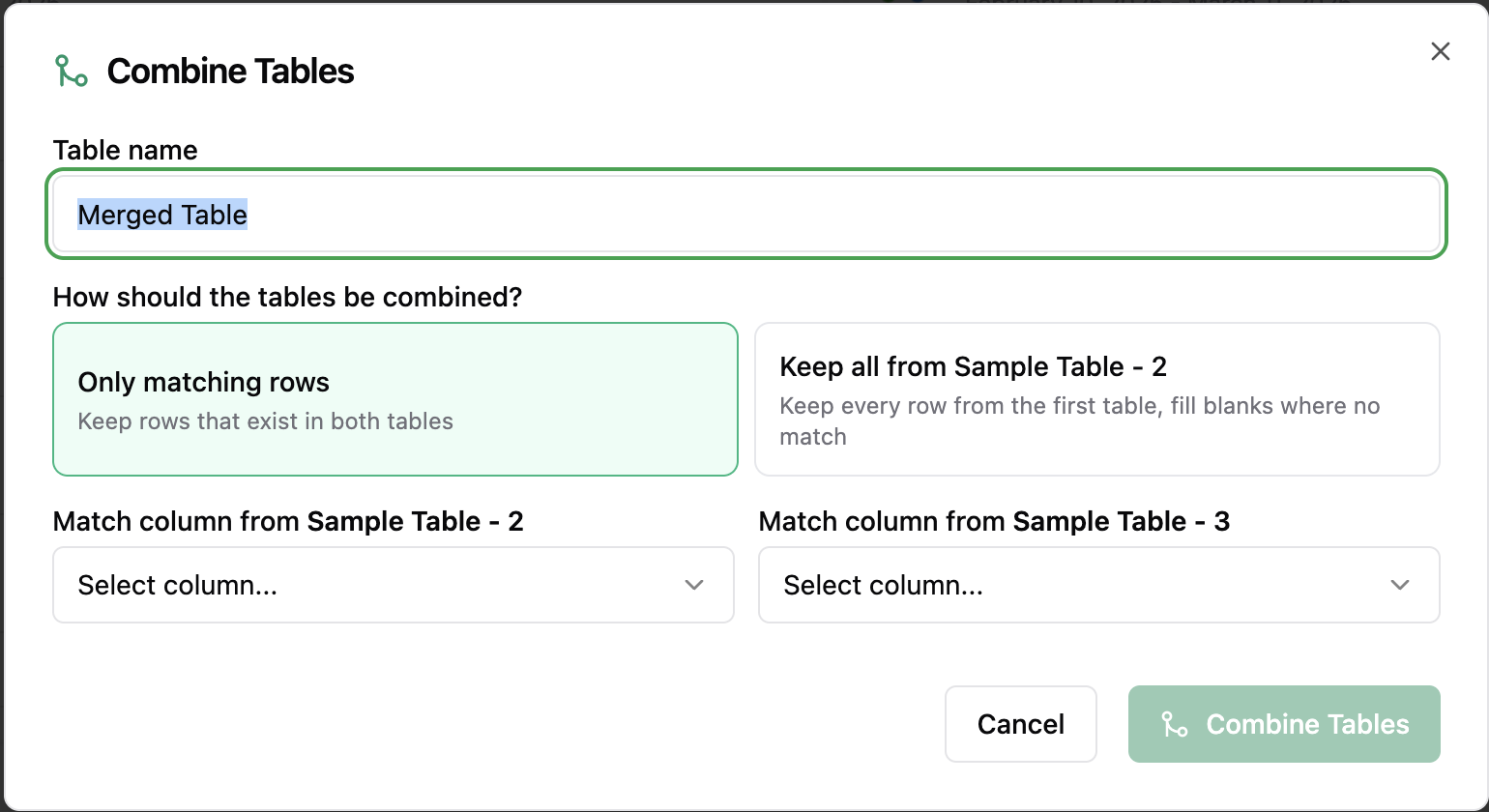
* The **Combine Tables** dialog opens after the second table is selected.
3. **Configure the merge**
In the dialog:
* For the **Table name** field **e**nter a name for the merged block (e.g. “Campaigns with spend”). Default is “Merged Table.”
* Select how you want the tables to be merged:
* **Only matching rows** – Keep only rows that have a match in **both** tables (like a database “inner join”). Rows that don’t match are dropped.
* **Keep all from \[left table]** – Keep every row from the **first** table; add columns from the second table where the key matches, and leave blanks where there is no match (like a “left join”).
* For the **Match columns** field:
* **Match column from \[left table]** – The column in the **first** table used to match rows (e.g. campaign\_id, Campaign name).
* **Match column from \[right table]** – The column in the **second** table used to match rows.
* Values in these two columns are compared to align rows. They don’t need the same name, but they should represent the same thing (e.g. both campaign IDs).
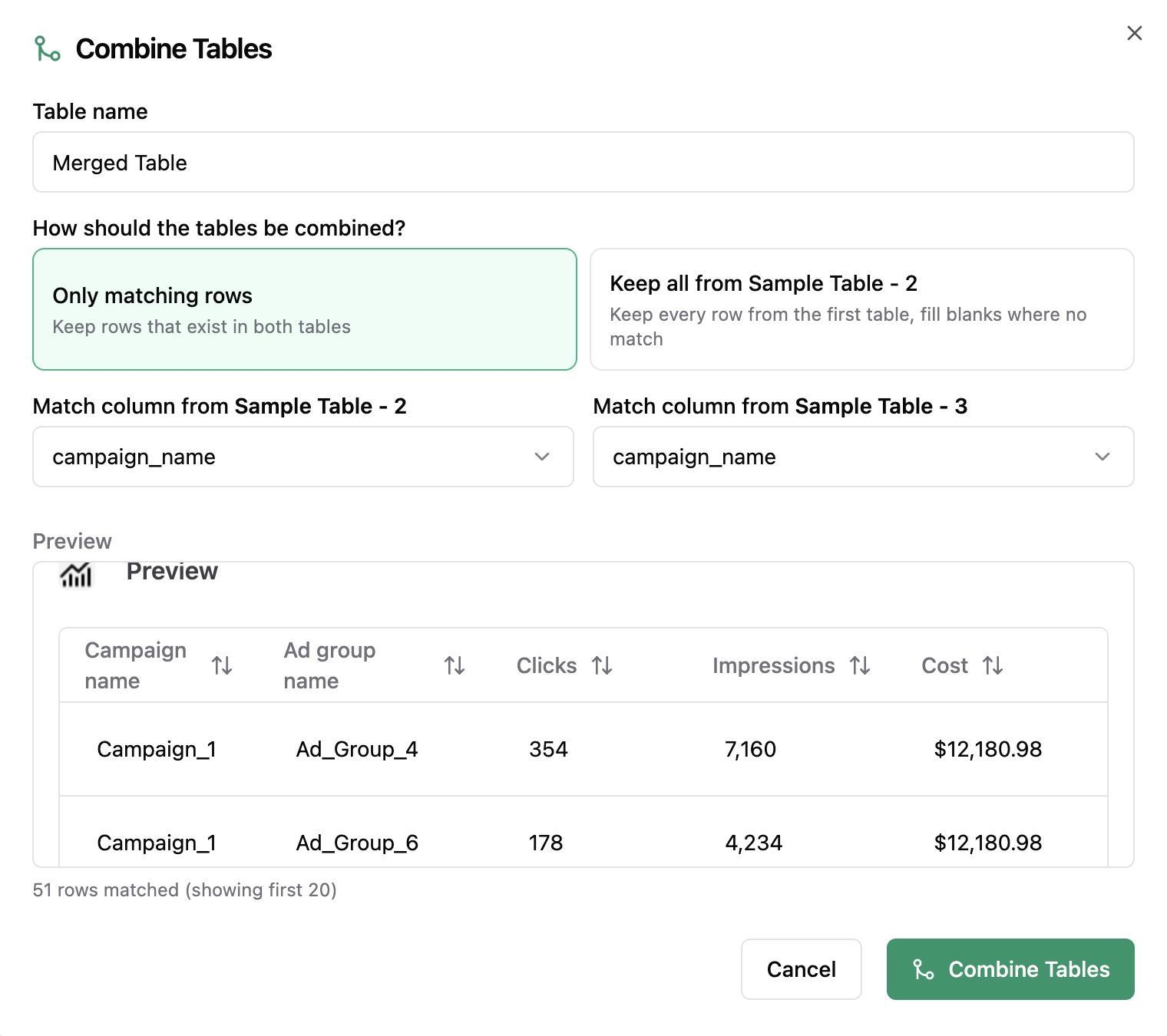
* **Preview** field:
* A preview shows the merged result and the total number of matched rows.
* If you see “No matching rows,” try different match columns or choose a different table to merge that has a field with common values to the first table.
4. **Revert Changes:**
* If you no longer want the merged block and want the two original table blocks back, hover the merged table block and click the unlink (break merge) icon in its toolbar.